
How to connect Substack subscribe forms and news archives to your WordPress site
September 2, 2026 · 9 min read
WordPress and Substack are both good at their jobs and neither knows the other exists. The usual result is a Substack embed dropped into a post, looking nothing like the theme around it, and an archive that only exists on Substack.
With the Quillo plugin installed you get two shortcodes: one renders a subscribe form you styled yourself, the other renders your Substack archive. Both are pasted like any other shortcode, and both keep working when you restyle them later.
What you need first
- A Quillo account with at least one subscribe form or newsfeed created.
- The Quillo WordPress plugin installed and activated.
- The site connected to Quillo, which the plugin walks you through.
The plugin needs WordPress 5.6 or newer with Application Passwords enabled, which is the default, and HTTPS on the site.
Install the plugin and connect the site
Download the plugin zip from the guide, then in WordPress admin open Plugins, Add New, Upload Plugin, install and activate it. After activation, open Settings, then Quillo, and click Connect to Quillo. WordPress creates an application password automatically, asks you to authorise, and returns you to Quillo where you click Allow.
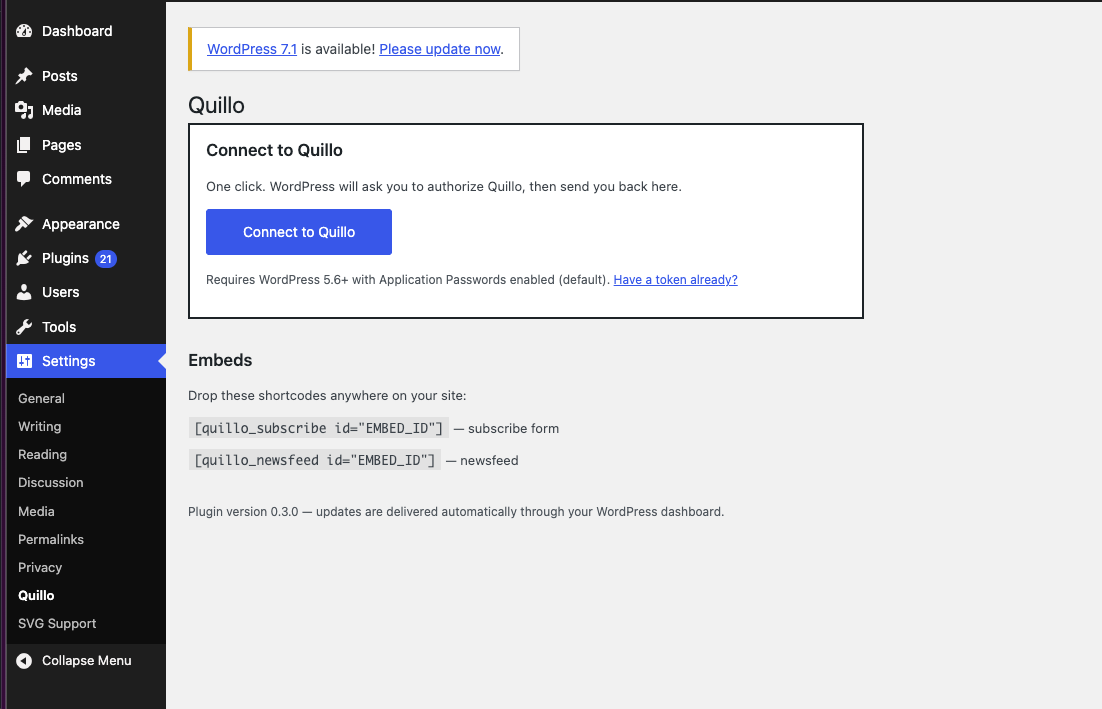
If your host strips the return address, you will land on a page saying your site is connected. Do not start again. Copy the token, then paste it in WordPress under Settings, Quillo, using Replace token if a token error is shown or Have a token already if the site is not connected yet.
The two shortcodes
Both take an id, and it is the bare embed id, not the element id from the JavaScript snippet. If you copied something that starts with quillo-subscribe- or quillo-newsfeed-, strip that prefix.
Subscribe form
[quillo_subscribe id="your-embed-id"]News archive
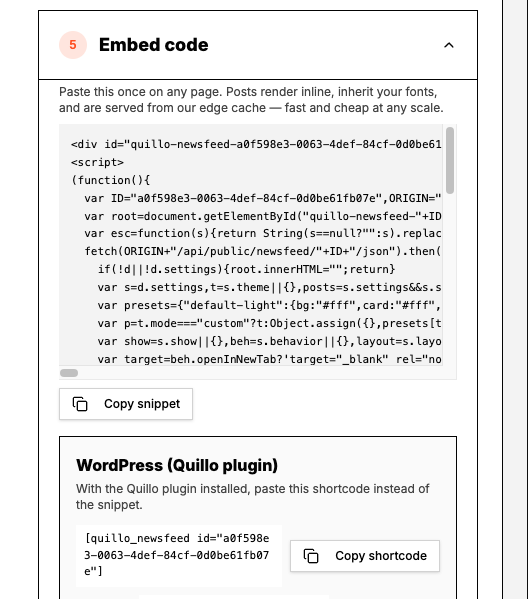
[quillo_newsfeed id="your-embed-id"]In the Quillo embed editor, the WordPress block shows the ready to paste shortcode and the bare id side by side, each with a copy button, so you never have to assemble it by hand.
Where to paste them
- In a post or page, add a Shortcode block in the block editor and paste it in.
- In a sidebar or footer, use a Shortcode widget or a block widget area.
- In a page builder, use whatever text or shortcode element it provides.
- In a theme template, use the standard WordPress do_shortcode call if you are comfortable editing templates.
A pattern that works well on a blog: a compact subscribe form at the end of every post, a wider one on the homepage, and the news archive on a dedicated newsletter page.
If you would rather not install a plugin
You do not have to. Every embed also produces a plain script snippet and an iframe. Paste the snippet into a Custom HTML block and it renders the same form or archive. The plugin exists to make placement easier and to keep the ids tidy, not because embedding is otherwise impossible.
Use the iframe if a security plugin or a hosting rule strips scripts from post content. It reports its height so the frame resizes to the content rather than scrolling inside a fixed box.
Popups on WordPress
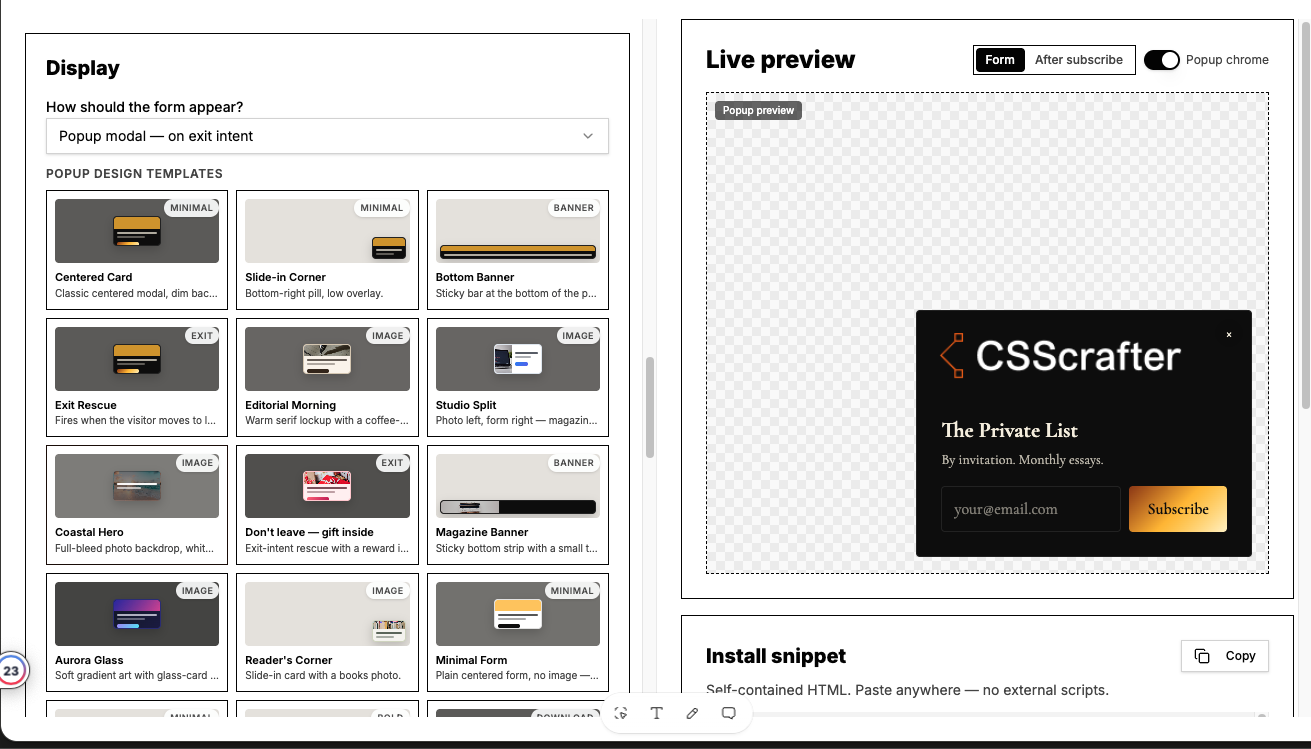
A form set to a popup or overlay display mode behaves the same way through the shortcode: it waits for its trigger and then appears above the page. Place it once, in a footer or a template that runs sitewide, rather than in every post. Two popups on one page is the fastest way to make a reader leave.
Restyling later without touching WordPress
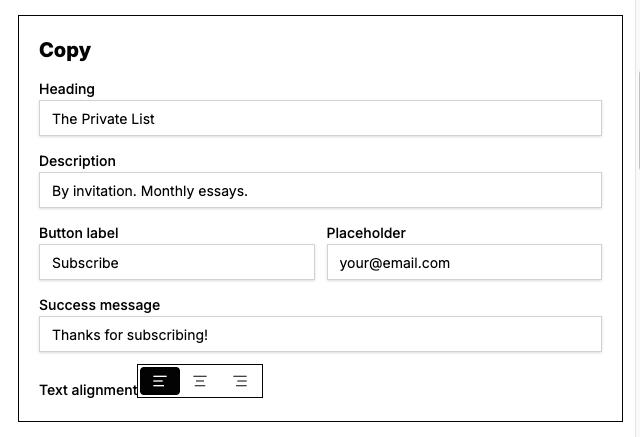
This is the practical advantage of embedding by id. The shortcode points at a form, not at a copy of its styling. When you change colours, fonts, borders or copy in Quillo, the version on your WordPress site updates too. You only revisit WordPress if you want a different form in that spot.
Signups collected through WordPress behave exactly like signups anywhere else: delivered to your Substack publication, stored as entries with delivery status if storage is on, retried when a delivery attempt fails, and exportable as CSV.
If something does not render
- Check the id. A prefixed element id from the JavaScript snippet will not work in the shortcode.
- Check the form is active in Quillo. An inactive form deliberately renders nothing.
- Check for a caching plugin. Clear the page cache after adding the shortcode.
- If the theme or a security plugin strips scripts, switch to the iframe method.
- If the connection card in Settings, Quillo shows a token error, paste a fresh token into Replace token rather than reconnecting from scratch.
Questions people ask
Do I need the plugin to embed a Quillo form on WordPress?
No. The plain script snippet works in a Custom HTML block, and an iframe is available too. The plugin adds shortcodes and keeps embed ids easy to copy.
Which id do the shortcodes want?
The bare embed id. Anything that begins with quillo-subscribe- or quillo-newsfeed- is the element id from the JavaScript snippet, so strip the prefix.
Do signups from WordPress reach my Substack list?
Yes. The form delivers to your Substack publication regardless of where it is embedded, and entries with delivery status are stored in Quillo when storage is on.
Will restyling the form in Quillo update my WordPress pages?
Yes. The shortcode references the form by id, so style and copy changes appear on your site without editing the page again.
Can I put the archive and the form on the same page?
Yes. They are separate embeds, so use both shortcodes in whatever order suits the page.
What if a security plugin blocks the script?
Use the iframe method for that placement. It renders the same embed in its own frame and resizes to its content.
Set this up in Quillo
Everything described here is part of the studio. The guide has the click by click version if you would rather follow along inside the app.
Keep reading
6 guides published. More as the studio grows.