
How to pull content from WordPress and run a weekly newsletter
September 2, 2026 · 10 min read
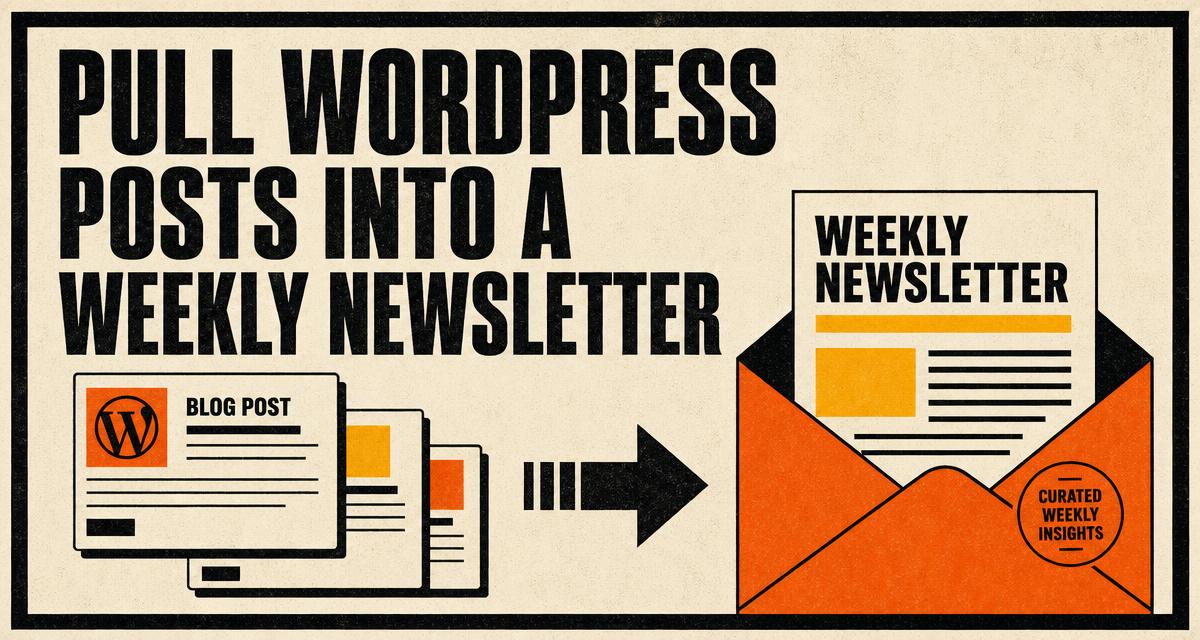
If you already publish on WordPress, you have written this week's newsletter. It is sitting in your posts list. The work left is choosing which posts to include, writing a short introduction that ties them together, and sending it.
This post is the manual version of that loop, with no AI drafting anywhere in it. Connect the site once, pull posts as they appear, assemble the issue yourself, then push it to Substack and schedule the send.
Which way the content flows
One thing to be clear about before you start, because it saves confusion later. Posts move from WordPress into Quillo. You edit them in Quillo. You publish to Substack from Quillo. There is no direct posting from WordPress to Substack, and nothing you do in Quillo writes back to your WordPress site.
Pulling posts is read only from your site's point of view. Quillo reads your published posts and never edits, deletes or publishes anything on WordPress.
Connect the site once
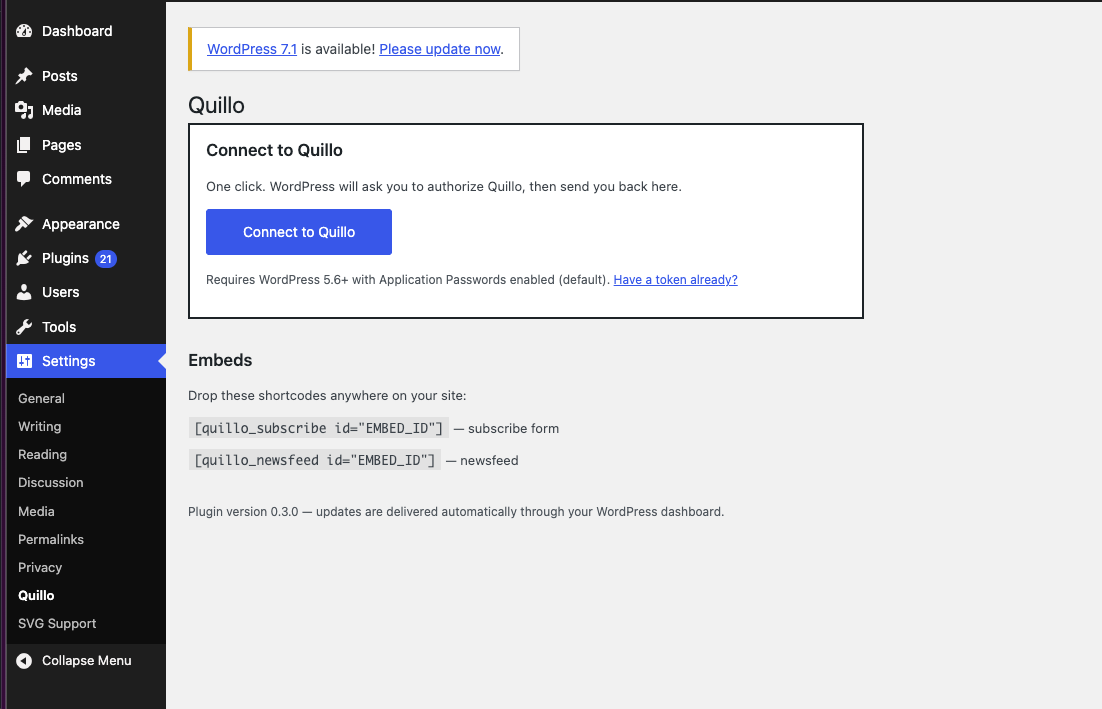
Install the Quillo plugin, then open Settings, Quillo in WordPress admin and click Connect to Quillo. WordPress creates an application password for Quillo, asks you to authorise the connection, and hands you back to Quillo where you click Allow. Your site then shows up under WordPress, Your posts.
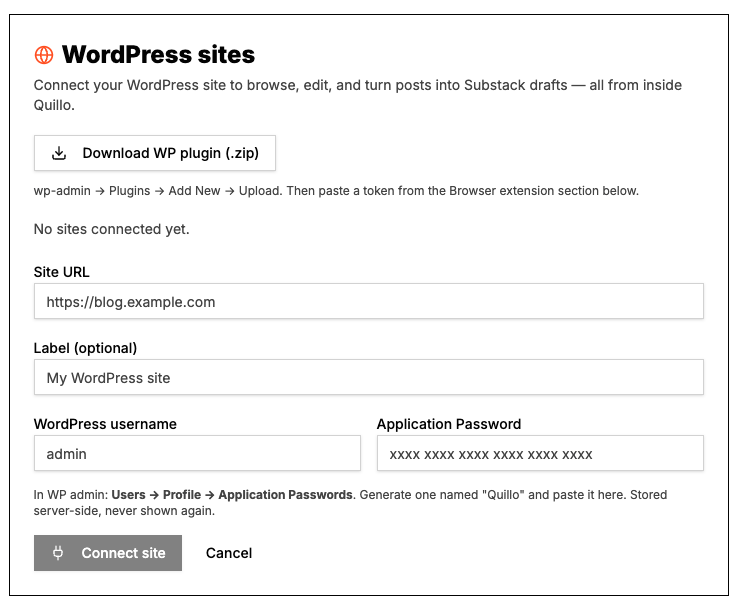
If your host or a security plugin blocks that flow, connect manually instead. Create an Application Password named Quillo on an administrator profile in WordPress, then fill in the site URL, WordPress username and that password in Quillo under Settings, WordPress sites. The password is stored server side and is never shown again.
The requirements are modest: WordPress 5.6 or newer, Application Passwords enabled, which is the default, and HTTPS on the site.
Pull the week's posts
Open WordPress, Your posts in Quillo and pick your site in the left column. You get your published posts with a search box, which matters once the archive is long. From there each post can go into the Library as source material, or straight into a draft.
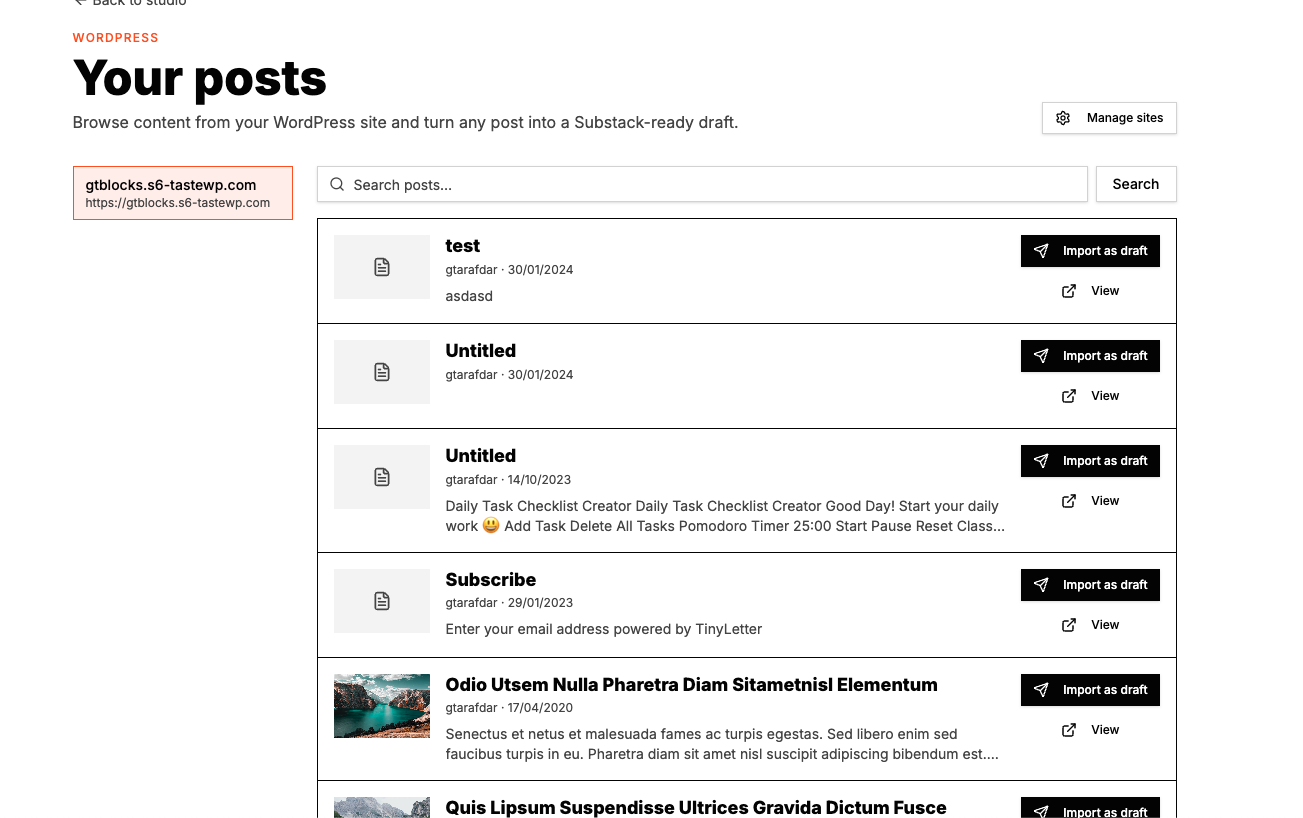
For a weekly roundup, send the posts into the Library rather than making a draft from each one. Then create a batch named after the week, drop this week's posts into it, and you have the issue assembled before you have written a word.
New posts can sync automatically for a connected site, so by Friday the week's material is already waiting. You are reviewing a list instead of hunting for links.
Assemble the issue yourself
- Select the batch in the Library and send it to the Composer.
- Write a subject line that says what the issue is about, not the word Newsletter and a number.
- Write two or three sentences at the top explaining why these pieces are together this week.
- Under each link, write one line in your own words. Not the excerpt. Your reason for including it.
- Cut anything you included out of habit rather than interest.
- Save the draft.
That short line under each link is the whole value of a roundup. A list of titles is a feed. A list of titles with a reason attached is an editor, and that is what people subscribe to.
AI drafting exists in Quillo and is entirely optional. Everything in this post is done by hand, and a weekly roundup is short enough that writing it yourself is usually faster than editing a generated draft.
Push to Substack, then schedule
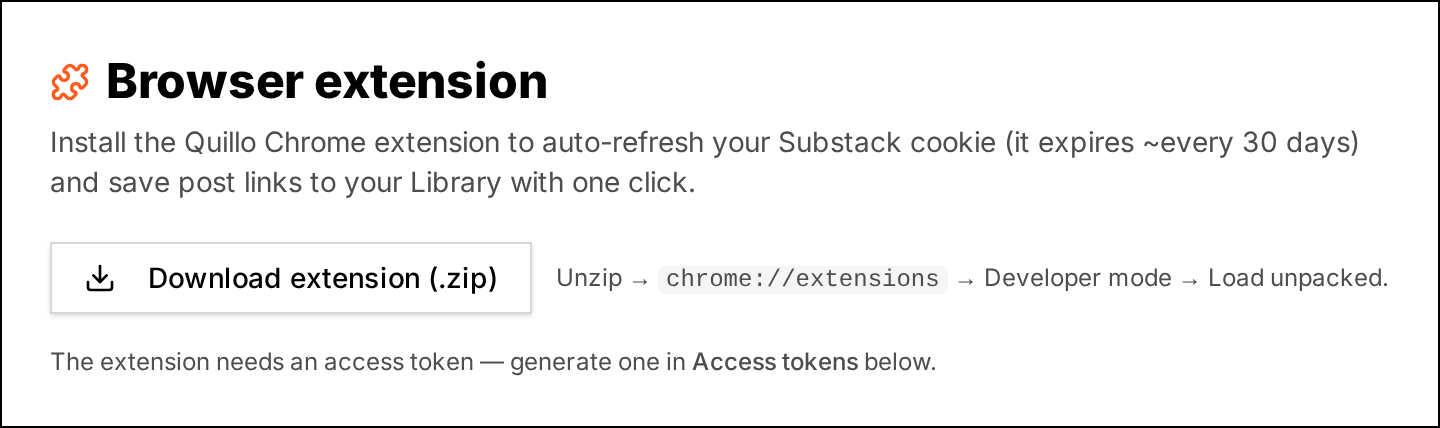
Publishing acts on your behalf on Substack, so Quillo needs a fresh Substack login session. The reliable way to give it one is the Quillo extension in Chrome or a Chromium browser. Generate a token in Settings under Browser extension, paste it into the extension once, sign in to Substack in the same browser, and sync.
From the Drafts screen, push the issue to Substack. You get an Open draft link so you can check it in Substack itself. Then publish immediately, or set a send time. Scheduling is worth the extra click. It lets you write on Friday and send on Monday morning, and you can unschedule if the week changes.
If the posts you drafted from had featured images, one is attached as the cover. Some sites block external access to their media files, and when that happens the issue still goes through without a cover, which you can add in Substack.
Close the loop on your own site
Once the newsletter is running, the missing piece is usually signup on WordPress itself. A branded subscribe form at the end of each post catches readers who arrived from search, and a news archive page lets them see what the newsletter has been about before they commit.
Both are Quillo embeds and both work through the plugin's shortcodes, so nothing needs theme editing. That is covered in the WordPress embedding post.
A weekly rhythm worth copying
- Monday to Thursday, publish on WordPress as usual and let the posts sync in.
- Friday morning, review the Library, batch the keepers, and drop what does not belong.
- Friday afternoon, write the intro and the one line notes, then save.
- Push to Substack and schedule Monday morning.
- Monday, do nothing. That is the point.
If something is not working
- Posts not appearing: confirm the site is connected in Settings, WordPress sites, and that the posts are published rather than drafts.
- Connection card showing a token error: paste a fresh token into Replace token in WordPress rather than reconnecting from scratch. Issuing a new token always replaces the old one.
- Push failing with a connection message: open the extension and sync again. The session, not the draft, is usually the problem.
- Missing cover image: the source site blocked access to its media. Add the image in Substack.
Questions people ask
Does Quillo change anything on my WordPress site?
No. It reads your published posts. It does not edit, delete or publish anything on WordPress.
Can I post from WordPress straight to Substack?
No. Posts are pulled into Quillo, edited there, and published to Substack from Quillo. That is the only direction.
Do I need AI drafting for a weekly roundup?
No. This whole workflow is manual. AI drafting is optional and uses your own provider key if you choose to turn it on.
What are the WordPress requirements?
WordPress 5.6 or newer with Application Passwords enabled, which is the default, and HTTPS on the site.
Why does publishing need the Chrome extension?
Pushing, scheduling and publishing use your own Substack login session, and the extension keeps that session fresh. A hand pasted cookie expires and later sends fail.
Can I schedule the send instead of publishing right away?
Yes. After pushing the draft you can set a send time and unschedule it again if needed.
Set this up in Quillo
Everything described here is part of the studio. The guide has the click by click version if you would rather follow along inside the app.
Keep reading
6 guides published. More as the studio grows.