
How to embed your Substack newsfeed as a news archive on any site
September 2, 2026 · 9 min read
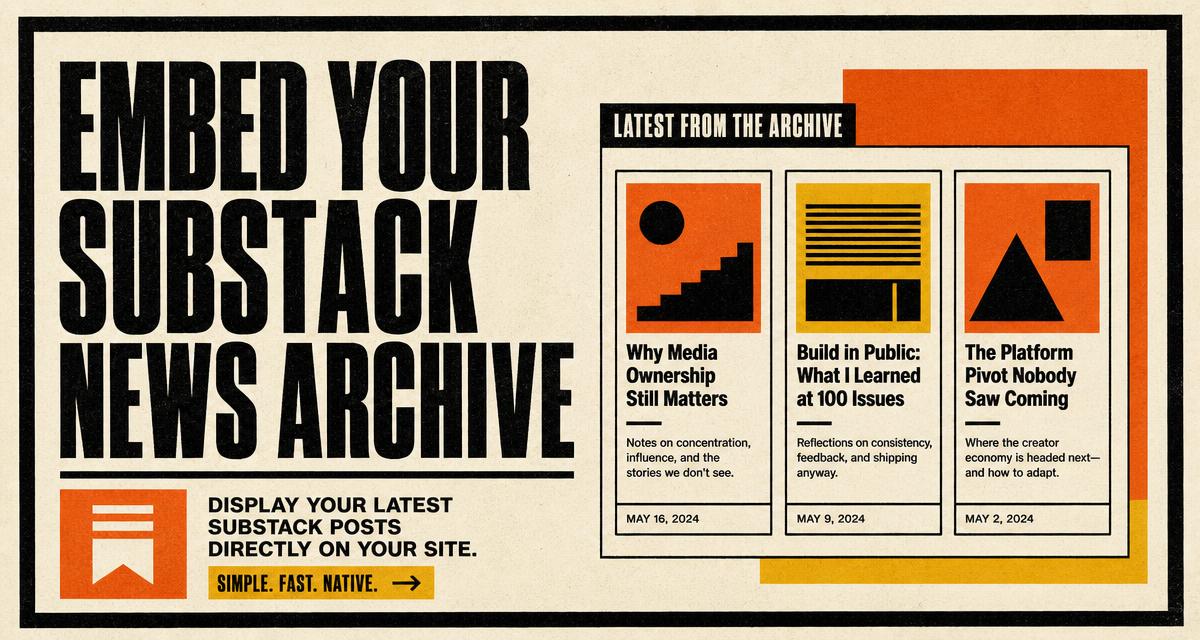
Your Substack archive lives on Substack. That is fine for readers who already found you, and useless for the visitor standing on your own homepage wondering whether you publish regularly.
A newsfeed embed fixes that. It pulls your published Substack posts and renders them on your site as a news archive you control the look of. This post covers how it works, what you can change, the three ways to install it, and where it makes the most difference.
What the newsfeed embed actually is
A newsfeed embed is a small block of code you paste once. It renders your latest published Substack posts, each with its title, date, an excerpt and a link back to the post on Substack. When you publish something new, the embed shows it. There is nothing to update by hand.
It reads your public publication feed, which means it works whether or not you have connected a Substack session, and it never touches paid content that is not public.
Posts still open on Substack. The embed is an archive view on your site, not a copy of your publication.
Create a newsfeed in the studio
- Open Embeds and choose New newsfeed.
- Paste your publication URL.
- Choose a layout and a style, set how many posts to show, then save.
- Copy the snippet, the iframe or the WordPress shortcode and paste it where the archive belongs.
Like subscribe forms, you can have several newsfeeds. A three post strip on the homepage and a longer list on a dedicated news page are two different embeds with two different settings.
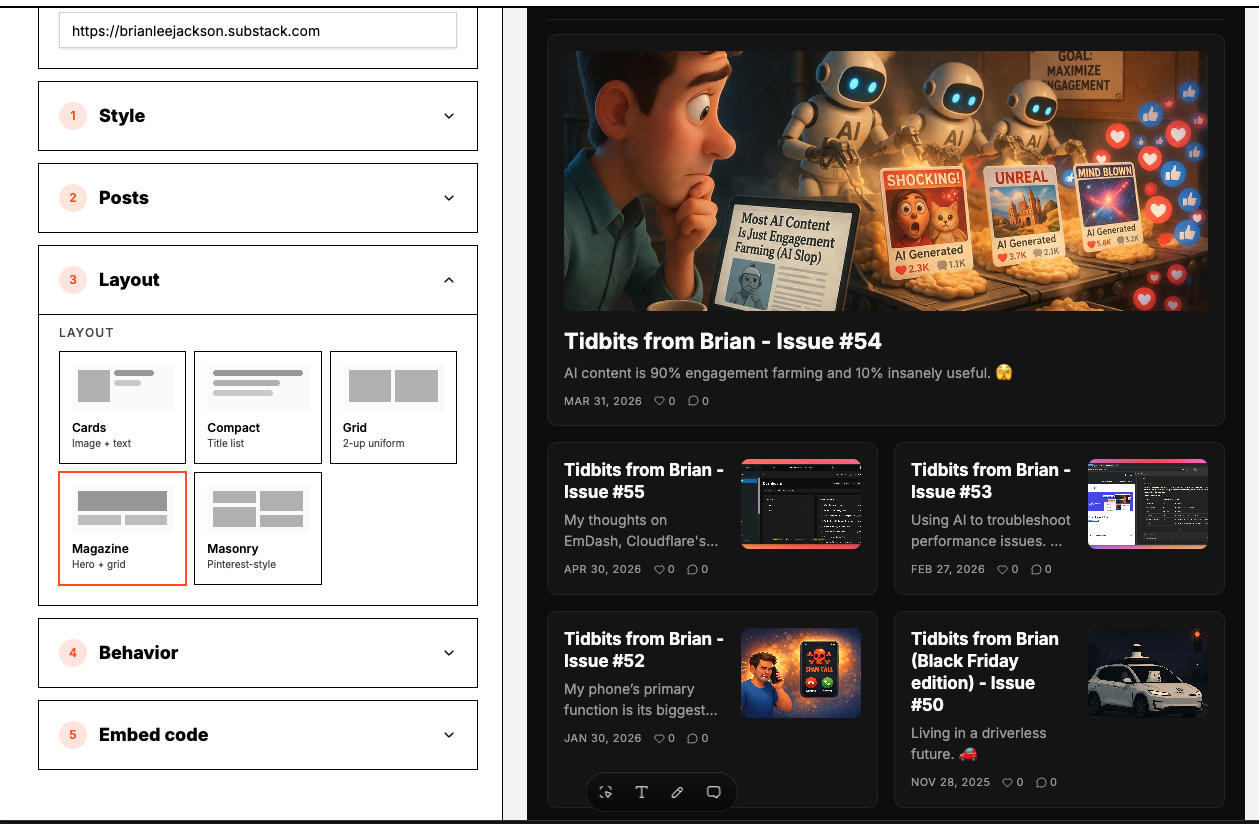
Layouts: grid, list and compact
Layout is the first decision because it changes how much space the archive needs.
- Grid works when the archive is the point of the section, for example a news page or a wide homepage band. Cards sit side by side and reflow to one column on phones.
- List suits a sidebar or a narrow column. Each post is a row, so ten posts do not turn into a wall.
- Compact is the tightest option: title and date only, for footers and small widget areas.
Styling the archive to match your site
The style panel carries the same idea as the subscribe form editor. Start from a template, then change whatever does not fit.
- Card background, text and accent colours.
- Font family, plus size and weight for post titles.
- Border colour and width, corner radius, card padding and the gap between cards.
- Whether dates, excerpts and the read more link are shown.
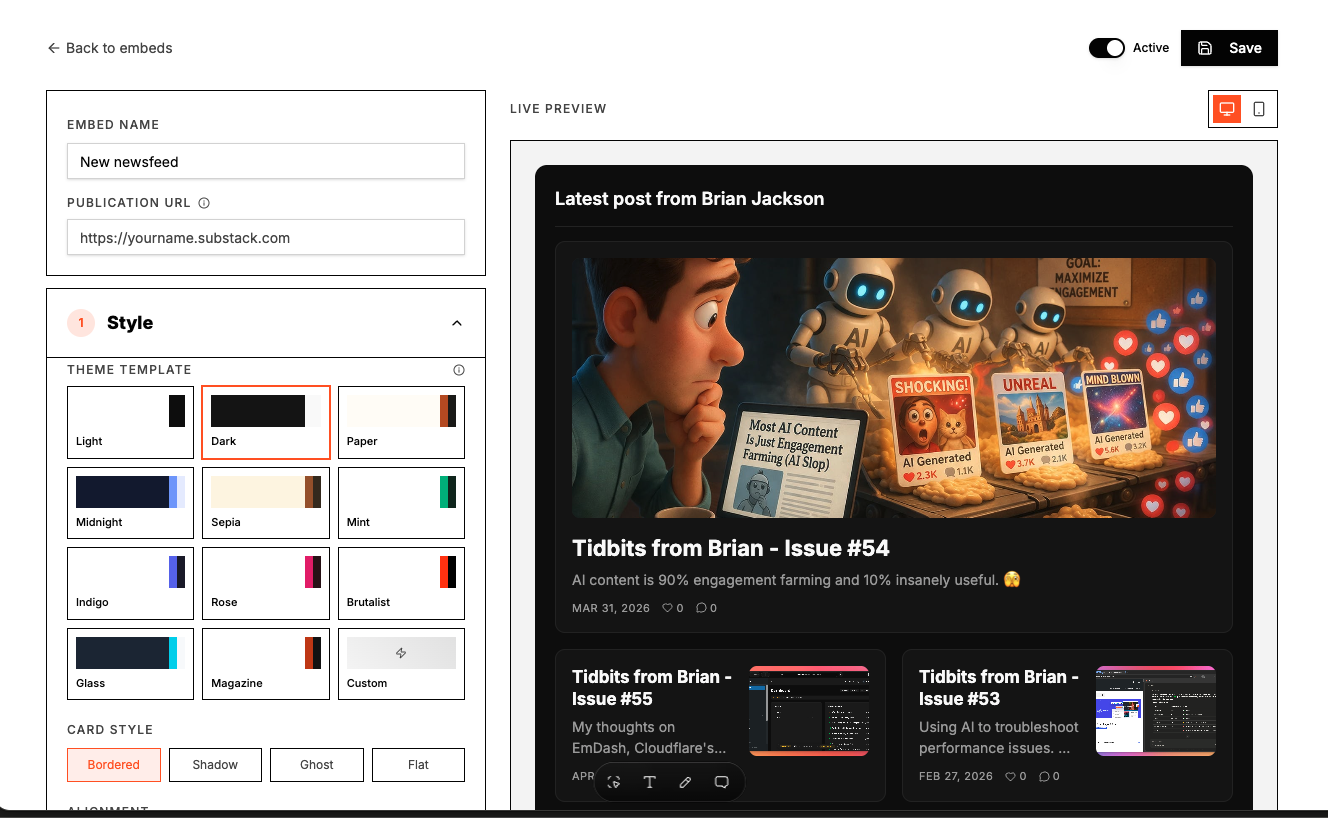
One tip that saves rework: match the card border and radius to the cards you already use elsewhere on the site. The archive stops reading as an embed the moment those two values agree with the rest of the page.
Choosing which posts appear
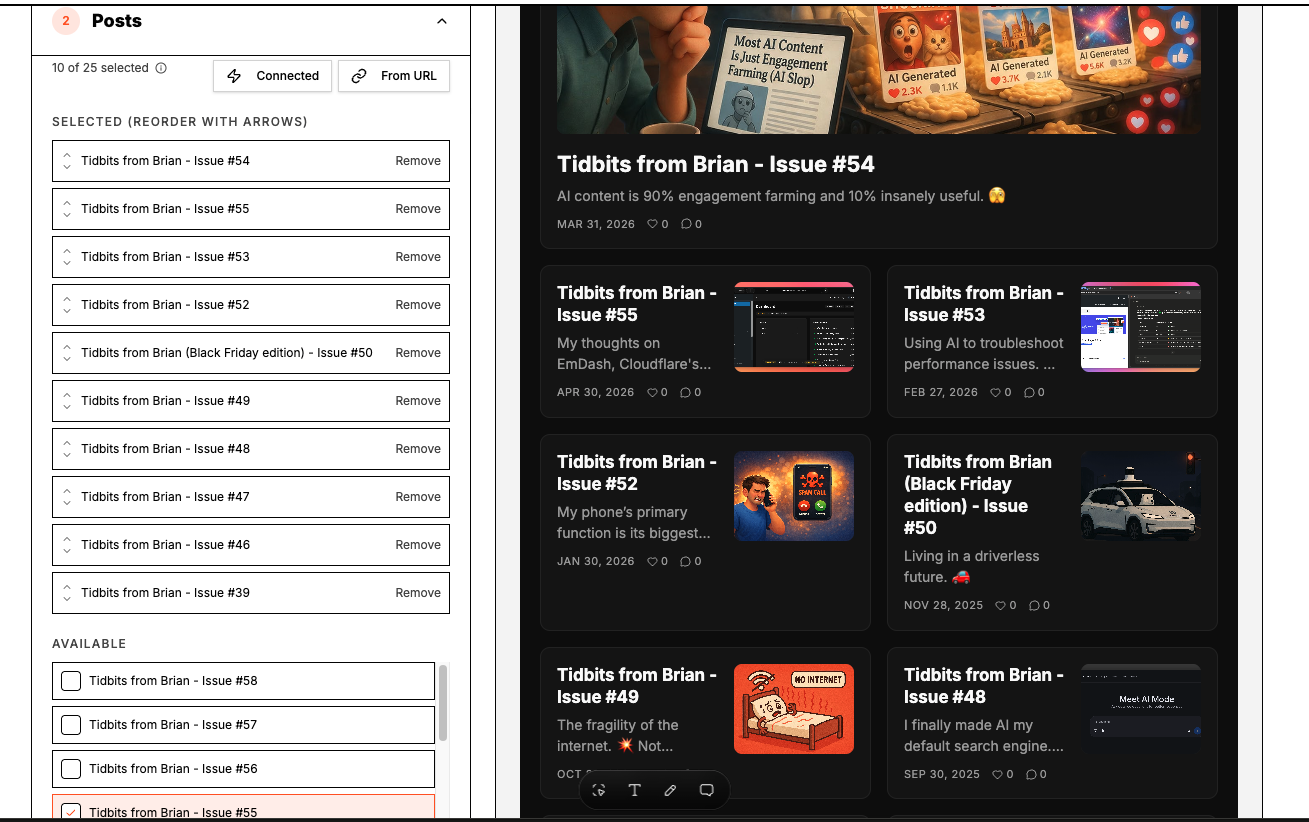
The posts panel controls how many entries the archive shows and how much of each post is previewed. Fewer, longer previews suit a homepage where you want one post to be tempting. More, shorter rows suit a news page where the point is to prove you publish consistently.
Behaviour: refresh, link targets and empty states
The behaviour panel handles the small decisions that make an embed feel finished: whether links open in a new tab, how the feed refreshes, and what shows if the feed has no posts yet.
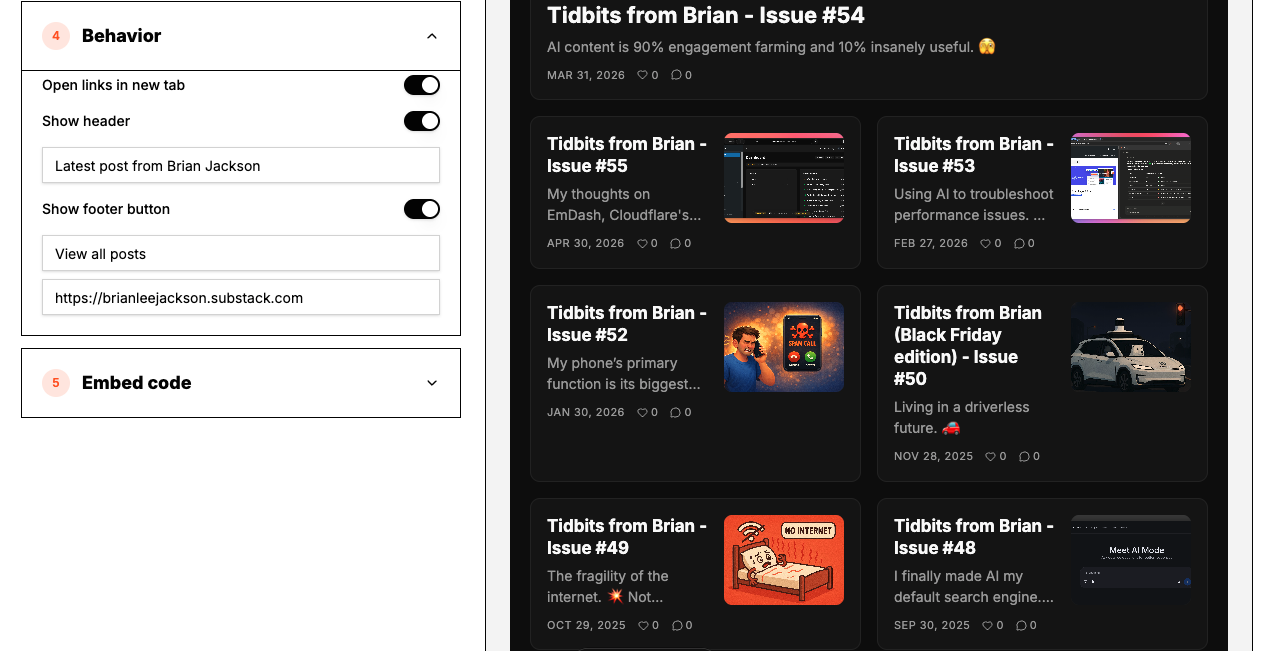
Opening posts in a new tab is usually the right call on a business site, because the visitor keeps your page and still reads the post. On a personal site where the Substack is the main destination, keeping the same tab is fine.
Three ways to install it
1. The script snippet
The default. Paste it into an HTML block or a theme template. It renders inside the page, inherits nothing from your CSS that would break it, and picks up your later style edits automatically.
2. The iframe
Useful where a platform strips scripts but allows iframes. The archive renders in its own frame and reports its height so the frame resizes to the content instead of scrolling inside a fixed box.
3. The WordPress shortcode
With the Quillo plugin installed, paste a shortcode and pass the bare embed id. Not the element id from the JavaScript snippet, just the id itself.
[quillo_newsfeed id="your-embed-id"]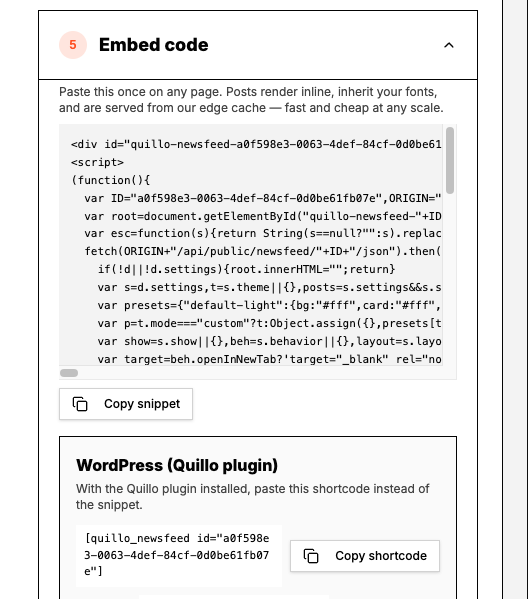
Where an archive earns its place
- A news page on a business site, so visitors see the newsletter is alive without leaving.
- A portfolio or about page, where recent writing is the proof.
- A footer strip with three recent posts, which quietly moves people from any page into your writing.
- A link in bio page, paired with a subscribe form so a reader can browse and then sign up in one place.
What you get out of it
- Visitors see current work instead of a static claim that you write a newsletter.
- Your site and your newsletter stop looking like two unrelated projects.
- No manual updating. Publishing on Substack is the only step.
- The archive sits next to your subscribe form, which is the moment a browsing reader is most likely to subscribe.
The embed links to your posts rather than republishing them, so your Substack stays the canonical home of the content.
Questions people ask
Does the newsfeed copy my posts onto my site?
No. It shows titles, dates and short excerpts, and links to the full post on Substack. Your Substack remains the place the content is published and read.
Do I need to connect my Substack account for the newsfeed?
No. The newsfeed reads your public publication feed, so a publication URL is enough. A connected account is only needed for pushing drafts and scheduling.
How quickly do new posts appear in the embed?
The feed refreshes on a short cache window, so a new post appears within minutes rather than instantly. That keeps the embed fast for visitors without hammering your feed.
Can I use the newsfeed and a subscribe form on the same page?
Yes, and it is a good pairing. They are separate embeds, so you can style them to match and place them independently.
Will the archive work on a platform that blocks JavaScript?
Use the iframe method there. It renders the same archive in its own frame and resizes to fit the content.
Is the newsfeed responsive?
Yes. Grid layouts reflow to a single column on narrow screens, and list and compact layouts are built for narrow columns to begin with.
Set this up in Quillo
Everything described here is part of the studio. The guide has the click by click version if you would rather follow along inside the app.
Keep reading
6 guides published. More as the studio grows.